


Tournaments are available for students on the KarMuqabla web app. Parents and teachers cannot play tournaments on their own accounts.
Steps
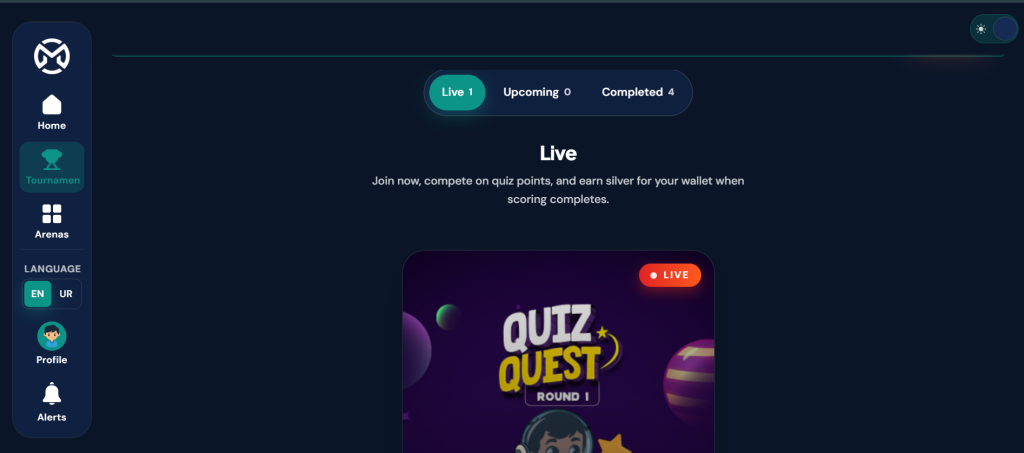
1. Open Tournaments
In the menu, tap Tournaments.
2. Browse the list
Use the tabs:
- Live — open now
- Upcoming — not started yet
- Completed — finished
Cards may show LIVE, UPCOMING, or COMPLETED.

3. Open a tournament
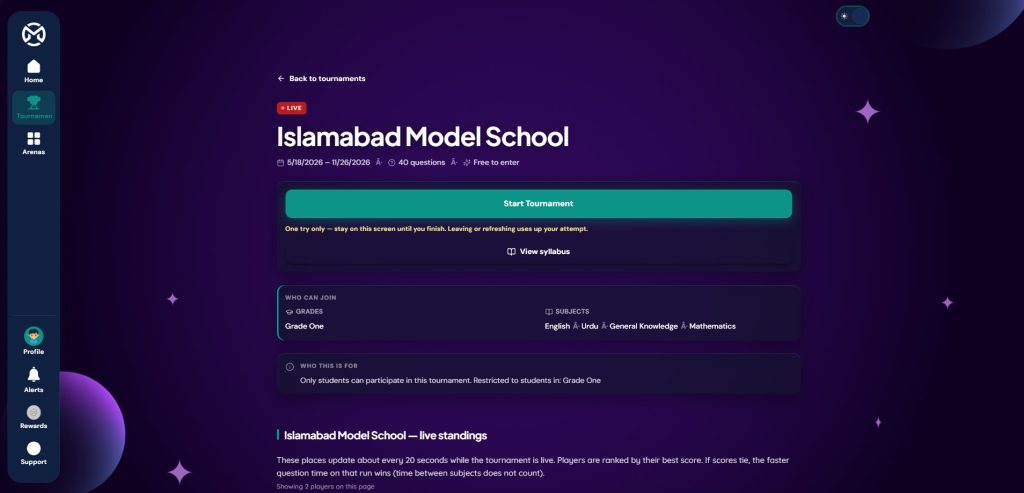
Tap a tournament card to see details: dates, number of questions, entry cost (**Free to enter** or gold coins), and who can join.
4. Start playing
When the tournament is live and you are allowed to join, tap **Start Tournament**.
If it is a one-try tournament, confirm when asked that this is your only attempt.
Other buttons you may see:
– **Opens soon** / **Tournament ended** / **Not available** / **Already finished** — you cannot start yet (or anymore)
– **View syllabus** — see what is covered
– **Back to tournaments** — return to the list

5. Enter the arena
On the tournament game screen, tap **Enter Arena**.
Use **← Back to tournament** if you need to leave.
6. Choose a subject and play
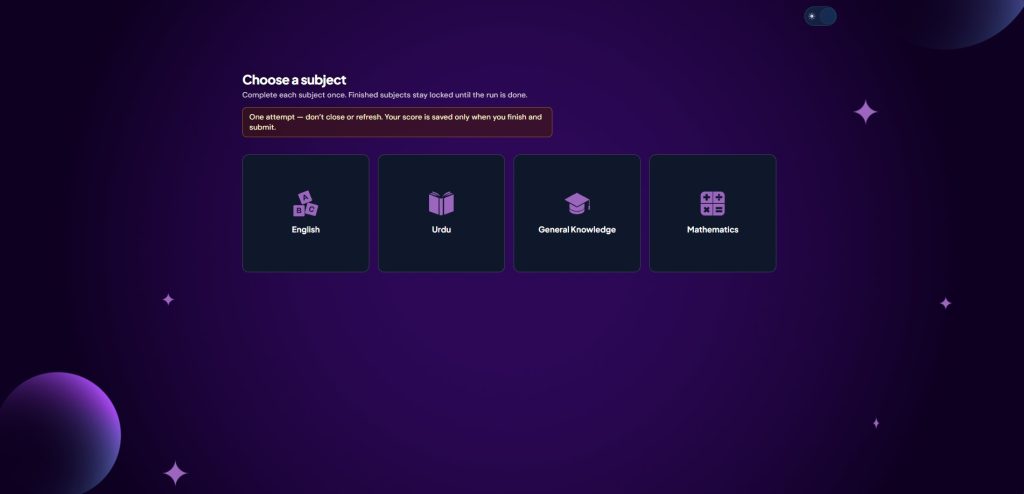
1. Tap a subject under **Choose a subject**.
2. Play the rounds.
3. After a subject, choose **Choose next subject** or **See final results**.

7. See your results
When all subjects are done, review your results. You may see options to **Share** or export.

You can also check **Live standings** or the final leaderboard on the tournament detail page.
—
Tips
– Sign in with the **student** account that should earn the score.
– Check entry cost before you start (free or gold).
– For grade quiz rankings (not tournament boards), see [How to View the Leaderboard](how-to-view-the-leaderboard.md).